Layer Decomposition
Split an image into separate editable layers. Detect text, objects and foreground elements, then export each as a transparent PNG for your design workflow.
Click to upload or drag & drop
jpeg, png, webp, bmp, tiff, gif
What to separate (optional)
Output resolution
Base image format
Credits required: 35
Key Features
- Splits an image into up to 16 editable layers
- Text, objects and subjects each become their own layer
- Every layer exports as a transparent PNG
- Guide the result with an optional prompt or bounding boxes


 Layer 1
 Layer 2
What is Layer Decomposition?
Layer decomposition splits a finished image into separate elements. Upload a picture to get each subject, text block and object as its own editable layer.
Key Features of Layer Decomposition
Turn a finished image into separate, editable assets.


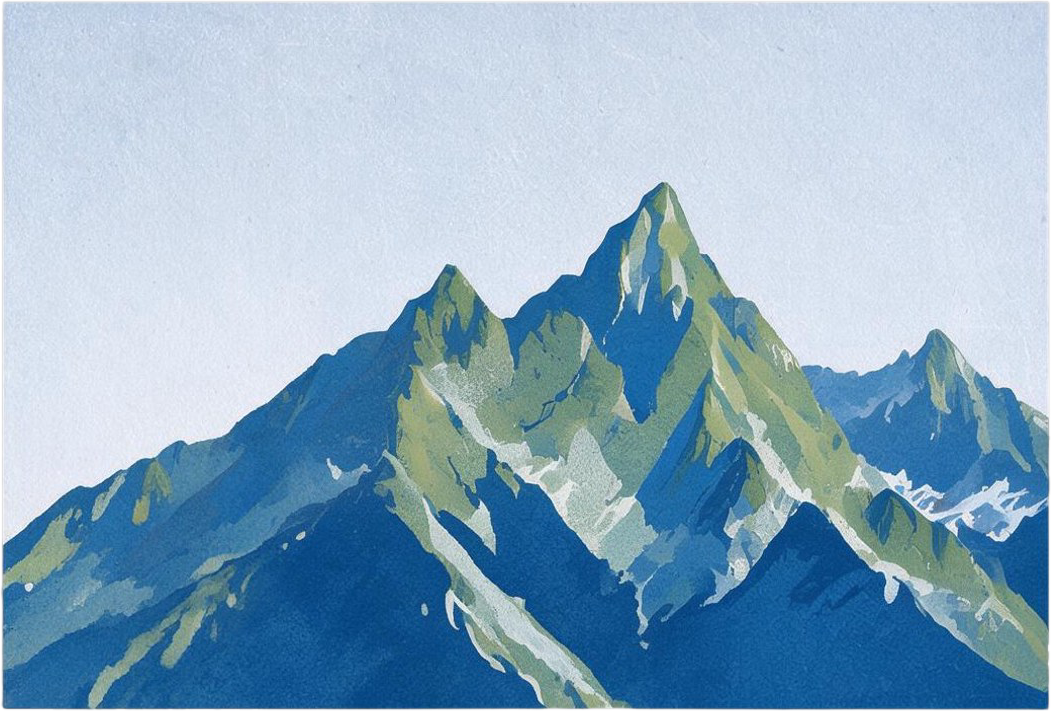
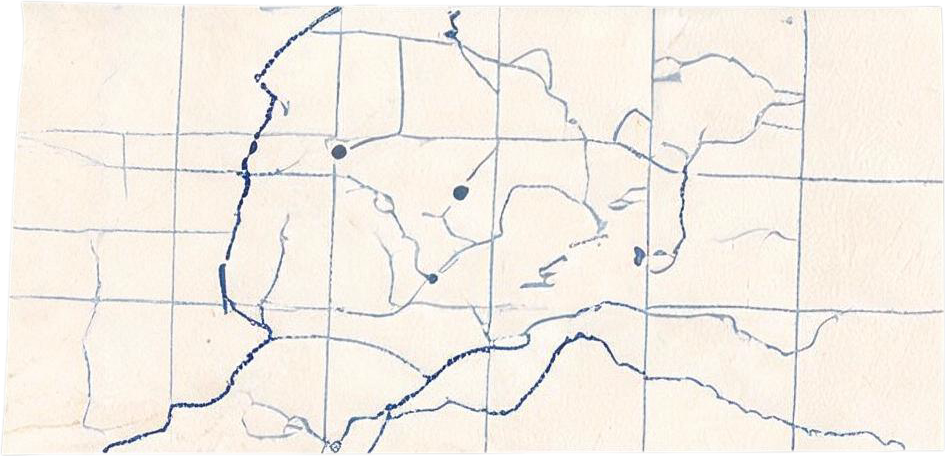


Separate the elements
Split titles, objects and foreground subjects into independent layers so each can be moved, recolored or replaced on its own. Clear separation between elements helps.







Reuse every piece
Download the layers and open them in your preferred design tool. Stack, reorder or restyle them to build a new composition.

Review before you publish
Preview every layer and inspect edges, text and transparent areas. Complex elements may need further refinement in your design workflow.
How to Use the Layer Decomposition
Clean editable layers in three simple steps.
Upload Your Image
Drop in the image you want to separate into layers.
Detect the Elements
The AI identifies the main objects, text and foreground elements.
Export Each Layer
Download every element as a separate transparent PNG.
Why Choose Our Layer Decomposition
Editable layers without the manual masking.
Automatic Separation
The AI finds and separates elements with no manual masking.
Text & Objects
Titles, logos, products and people each become their own layer.
Transparent PNG Layers
Every separated layer is exported with a clean alpha channel.
Guided Selection
Describe what to separate, or point the model at a region with bounding boxes.
Flexible Resolution
Choose auto, 1K, 1.5K or 2K output for the base image.
Editing-Ready Output
Rebuild the composition in any design tool with full control.
Frequently Asked Questions
Everything you need to know about layer decomposition.
Break your design into reusable parts.
Start with an idea. Make a first version. Take it further.
Decompose a layer