動画延長
Seedance 2.5 を使い、既存の動画に続きの映像を生成し、プロンプトで次の展開を指定します。
Start with the video you want to continue, then describe what happens next. Images and audio can provide optional supporting context.
jpeg, png, webp, mp4, mov, mp3, wav
Generate multiple videos in one batch with the same settings, up to 10 videos.
Reference input guide
Seedance 2.5 supports text-to-video, first-frame or first-and-last-frame image-to-video, and reference-to-video with up to 50 mixed image, video, and audio materials.
Type @ to quickly insert your uploaded files into the prompt.
Select a file to insert it as a reference (e.g. @Image1, @Video1, @Audio1), so the AI knows exactly which material to use.
- Up to 30 reference images
- Up to 10 reference videos; each 2–30 seconds and 30 seconds total
- For video editing tasks, video materials must be 4–30 seconds long, with a minimum duration of 4 seconds
- Up to 10 reference audio clips; each 2–30 seconds and 30 seconds total
- Maximum 50 materials in total; provide at least one image, video, or audio
- Output: 480p or 720p, from 4 to 30 seconds
- Text and reference modes: adaptive, 16:9, 9:16, 1:1, 4:3, 3:4, or 21:9. Image mode: adaptive only
- Text + Image
- Text + Video
- Text + Audio
- Text + Image + Video
- Text + Image + Audio
- Text + Video + Audio
- Text + Image + Video + Audio
Audio may be used as the only reference material. Use @Image1, @Video1, or @Audio1 in the prompt to map each material clearly.
動画延長とは?
動画延長は、元クリップを生成される続きの文脈として使います。次の動作やカメラワークを記述し、シーンが現在の終わりを超えてどう展開できるかを検討します。
動画延長の主な特長
Seedance 2.5 で既存のシーンに続きの余地を与えます。
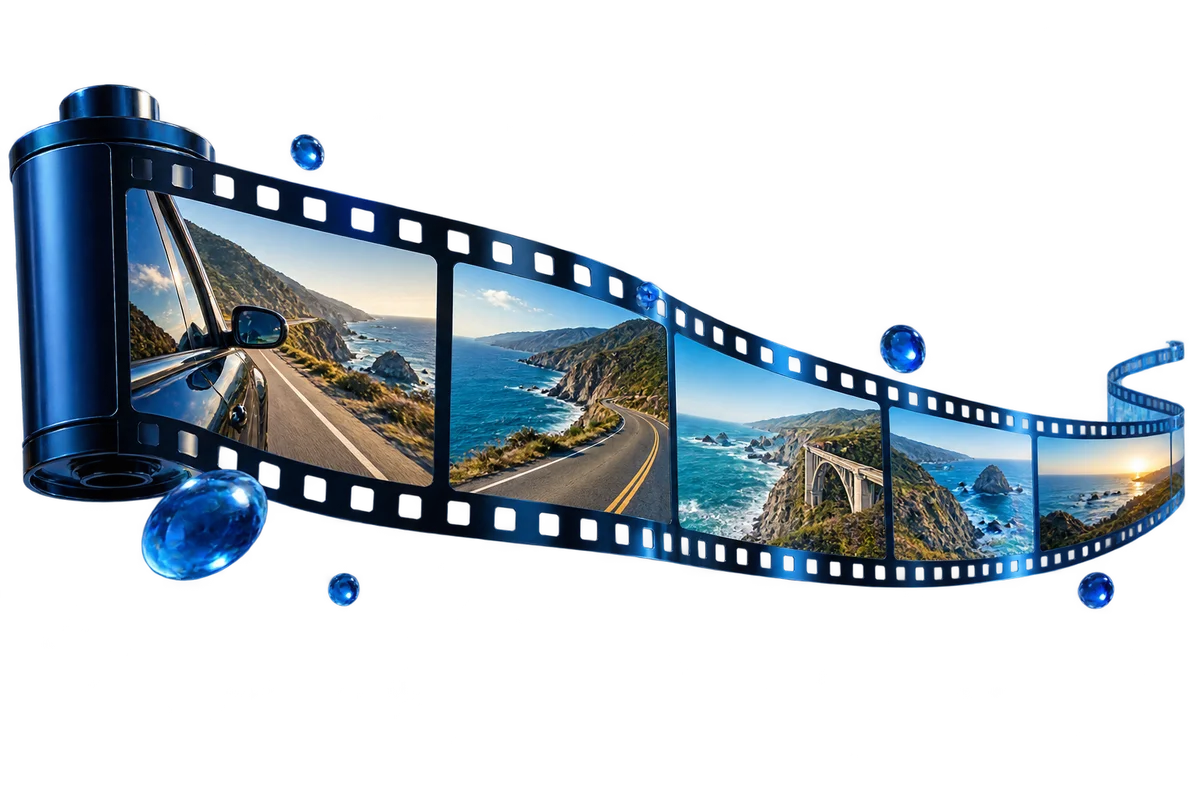
元クリップから続ける
動画から始め、続きのための文脈をモデルに与えます。延長モードはすでに選択されているため、次の展開に集中できます。
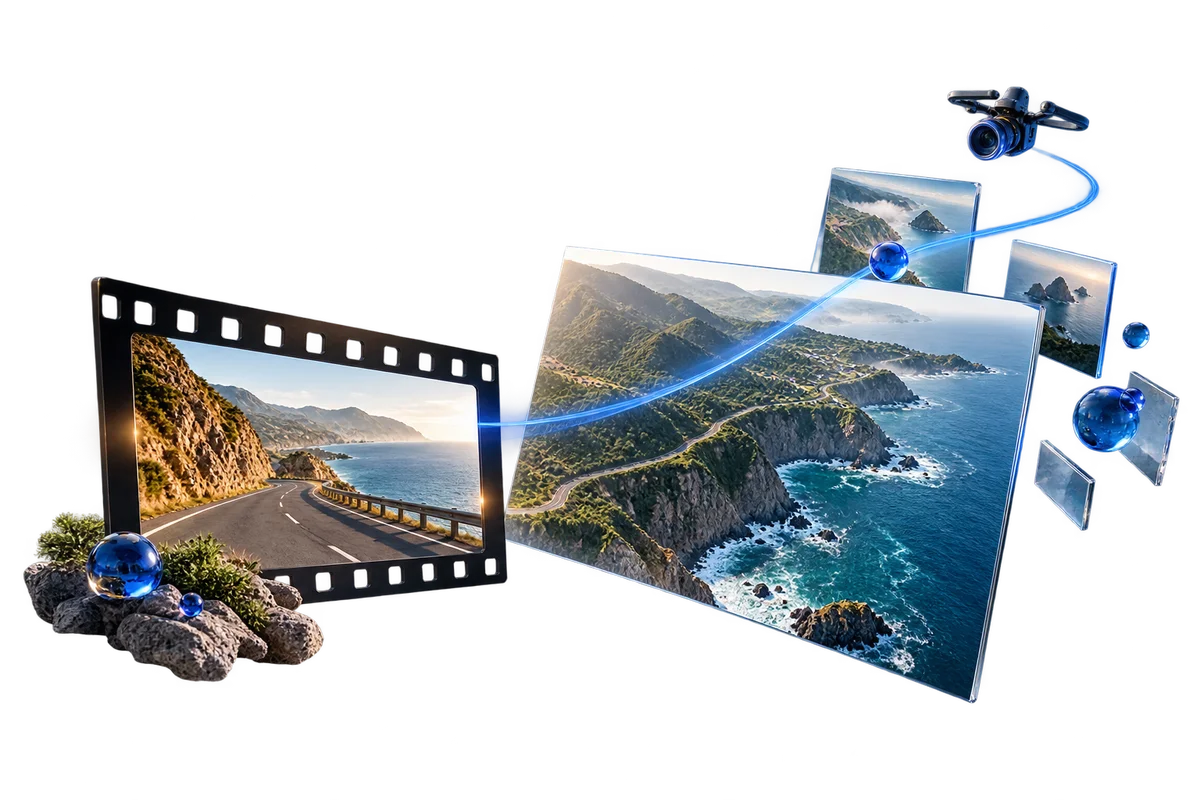
続きに目的を与える
次の動作、ゆっくりした見せ場、新しいカメラワークを記述します。具体的な延長プロンプトが、モデルに明確な物語の方向を与えます。

文脈で連続性を導く
元クリップと対応する参照素材を使い、被写体と雰囲気を伝えます。最終的なシーケンスを準備する際に、つなぎ目と視覚的な細部を確認します。
動画延長の使い方
クリップを追加し、次の展開を記述して、延長する長さを選択します。
元クリップを追加
続きを生成したい動画をアップロードします。
次の瞬間を記述
次に起きる内容を記述し、利用できる長さの設定を選択します。
続きを生成
推定クレジットを確認し、生成して、元クリップとの連続性を確認します。
活用シーン
ストーリー、商品の見せ場、ミュージック編集、ラストシーン向けの追加映像を作成できます。
短編映画の続き
元クリップが終わったあとのキャラクターの動作を続けます。次の動きや出来事を記述して長いストーリーの一場面を展開し、シーケンスに組み込む前に続きのつながり方を確認します。
商品紹介の延長
商品カットに、元の終わりを超えて展開する時間を与えます。カメラや被写体がどう動き続けるかを記述し、ローンチ動画や販促編集で検討する追加素材を作成します。
ミュージックビデオの編集
使いたい楽曲の区間に届く前に有望なクリップが終わってしまったとき、映像素材を追加生成します。シーンの動きを続けてから、編集ソフトで音源に合わせてトリミングと位置合わせを行います。
映画の情景カット
場所を紹介する時間が足りないとき、風景・外観・室内のカットを延長します。雰囲気とカメラワークの続きを記述し、編集に合う部分を選びます。
エンドカードと締めの瞬間
編集工程で締めのメッセージを入れる余白を作るため、最後のシーンを延長します。静かな続きを記述し、選んだ映像の上にロゴ・キャプション・CTA を編集ソフトで重ねます。
アクションシーンの展開
仕草・動作・対峙の直後に何が起きるかを探ります。元クリップを次のアクションの文脈として使い、続きをより長い演技や物語シーケンスの候補として検討します。
よくある質問
入力素材・利用できる設定・生成の流れについての回答です。
物語にはまだ続きがあります。
アイデアから始める。まず一版を作る。さらに先へ進める。
動画を延長する